> ## Documentation Index
> Fetch the complete documentation index at: https://docs.truust.io/llms.txt
> Use this file to discover all available pages before exploring further.
# Payment Flows
> Truust provides a powerful API and other tools you need to accept payments, as well as pay sellers and service providers.
***
Truust is built following a transaction based flow. **Every movement registered on the platform must be associated with an order** and it just follows the standard lifecycle.
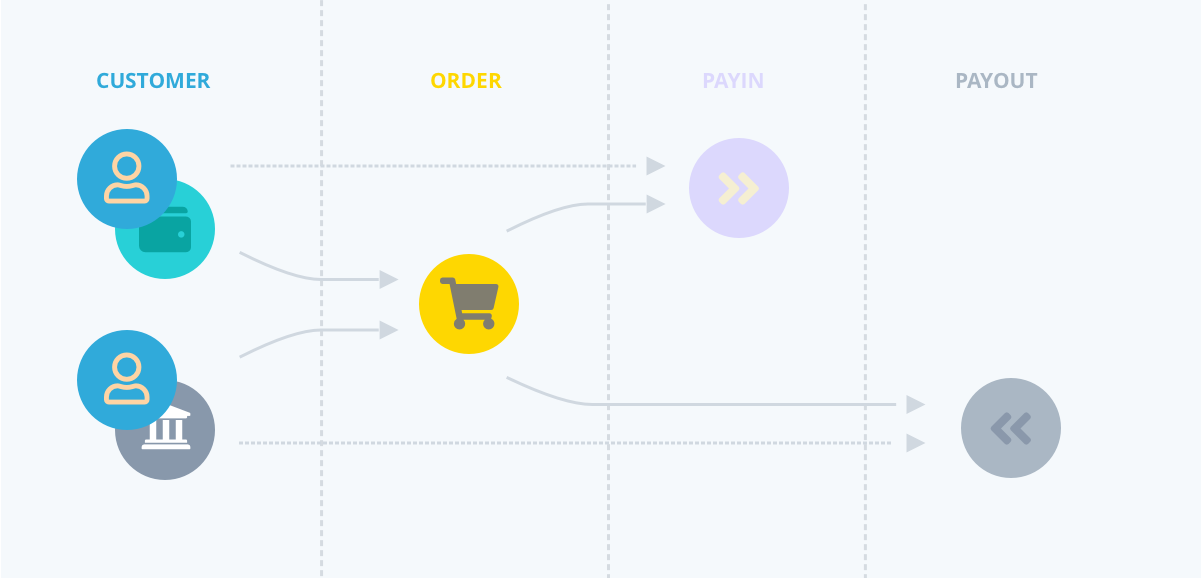
By default, our platform will require an `order` **with a previously created buyer and seller**, following a one to one relationship. This order will have two more relationships: a `payin` and a `payout`.
Please, consider reviewing our [API Reference](/developers#apireference) to get a list with all the available endpoints and parameters.
## Order Lifecycle
Every order follows a standard life-cycle. You need to check it and understand how this life-cycle will fit into your platform. Order statuses can help you locate where your money is in the order lifecycle.
### 1. Order is created
The process will usually start when a new transaction happens in your platform. **You will then create an order through our available methods** indicating a `name`, `amount`, the IDs of both `buyer_id` and `seller_id` and (as optional parameters) the confirmation and denial URLs for both users (`buyer_*` for the buyer and `seller_*` for the seller).
The current order status shall be `DRAFT`.
### 2. Buyer receives the buyer\_link and completes the Pay in
Once the order is created, you must share the order's `buyer_link` with the buyer to complete the payment. The process of sharing the link can be done through our platform (using our Dashboard) or the notification methods you normally use on your site, like push or email.
If you prefer to **complete the payment totally on your side** without sending the `buyer_link`, you must create the associated `payin` to this order directly with our API. The available payin types of currently are:
* `REDSYS_V2` or `CECABANK` - Completes the payment using one of our card-payments gateway
* `BANKWIRE` - Completes the payment using a bank transfer
* `WALLET` - Completes the payment using the funds located at the specified `wallet_id` parameter
Once the `payin` is created through our API, you must redirect the user to the `direct_link` property. From this moment, **the user will be redirected again from our site to the payment gateway** to complete the transaction. We won't have any interaction with the user on the payments page.
When the buyer finishes the payment process, **he will be redirected to the URL that you set** when creating the order (Step 1) or a default one provided by us.
The order status on this moment shall be `PUBLISHED` if the payment is successful or `FAILURE` if there is a problem during the payment. In this case, **you can use the same link to allow the user a new try** without the need to create a new order/payin.
### 3. Seller receives seller\_link, accepts the order and completes the Payout
After the payment is done, you should notify the seller about the payment status. The seller must navigate to the `seller_link` provided by us, accept the order and fill the bank account information where the money will be deposited. Once the seller fills in that information, he is redirected to the URL that you set on Step 1.
Again, if **you prefer to complete this process totally on your side**, you must create the associated `payout` to this order and **accept the order with our API**. The available payout types are:
* `ACCOUNT` - Sends the money to the bank account specified at the `bankaccount_id` API parameter
* `WALLET` - Sends the money to the wallet specified at the `wallet_id` API parameter
The final status of this process shall be `PENDING_VALIDATE`.
### 4. The order is validated.
At this moment, the money will be held and waiting for release. **This action is not automatic and you are responsible to trigger the validation**, depending on your business rules. Use [our API](/developers) to complete this action or use our Dashboard [Order Actions](/dashboard#orderactions).
The status at this moment shall be `PENDING_RELEASE`.
### 5. The order is released.
**Once we received the validation** to release the order, we begin the process to complete the payout. Depending on your payout type the time expected to the funds to be available will vary.
If you choose to perform a `WALLET` payout, the funds will be available almost instantly. If you choose to perform an `ACCOUNT` payout, expect the money to be available on the specified bank account in between 24-72h.
## Order Status
Remember. As money travels from the customer to your (or other) bank account, the order is given a series of statuses. The possible order status is the following:
* `DRAFT` - The order has been initiated by someone.
* `PENDING_PUBLISH` - The order has a buyer identified and is pending to be paid.
* `FAILURE` - The order payin has failed. The reason could be checked on the payins list.
* `PUBLISHED` - The order has been paid and is waiting for acceptance.
* `CANCELLED` - The order has been canceled by the buyer. The refund is automatically done.
* `ACCEPTED` - The order has been accepted by the seller and waiting for payout details.
* `REJECTED` - The order has been rejected by the seller. The refund will be manually handled.
* `PENDING_VALIDATE` - The payout details are completed and the order is waiting to be validated by someone (usually you or your platform).
* `PENDING_RELEASE` - The order has been validated and waiting to be released. This process is automatic and does not require further action by your part.
* `BLOCKED_RELEASE` - The order release has been blocked for some reason and will not be completed. Contact us for more information.
* `RELEASED` - The order has been released.
**About order status:** You don't need to worry too much about this list. In our Dashboard, our order list follows a color-scheme, where you can easily identify each status.
## Split Payments
Our tool features seamless payment collection, disbursement, and management. It helps you reduce your operational costs with our automated split payments. All while tracking the flow of funds from a customer to a recipient, fully recording all transactions.
### Default Split Payments
Truust will use your **account default's payment method** (Card or Bankwire) for the order's `payin` and bank account for the order's `payout`.
Using this default configuration, the **standard relationship** between customers, orders, pay ins and payouts will result in something like:
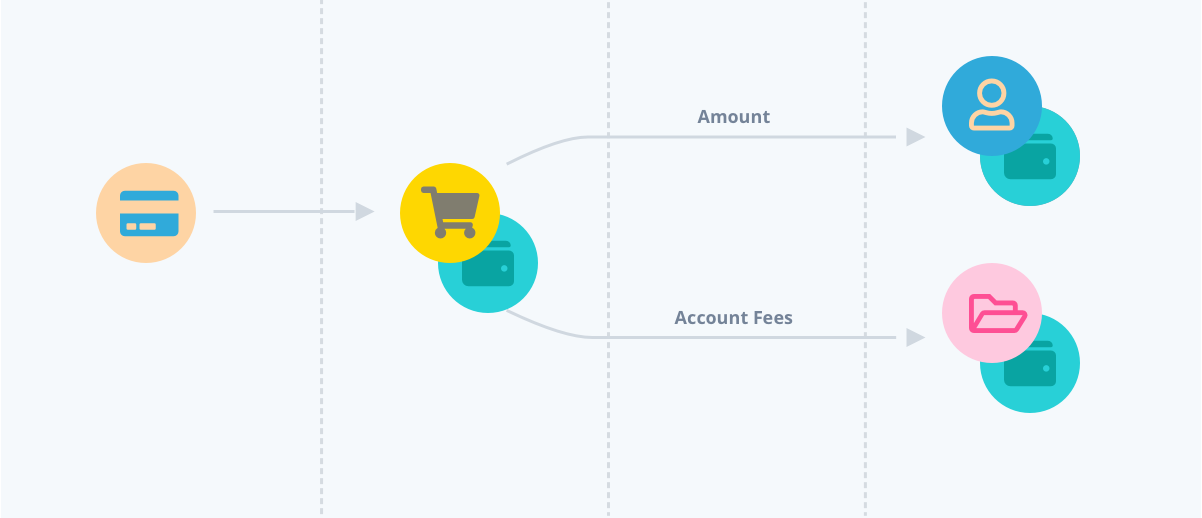
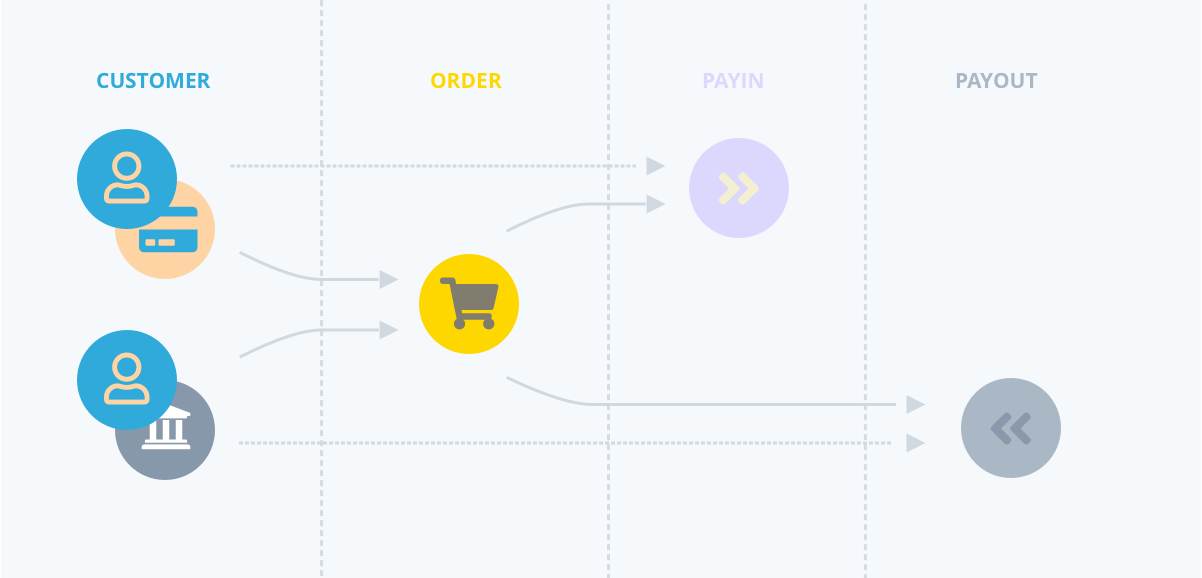 In this case, the money will be transferred and split following the next scheme:
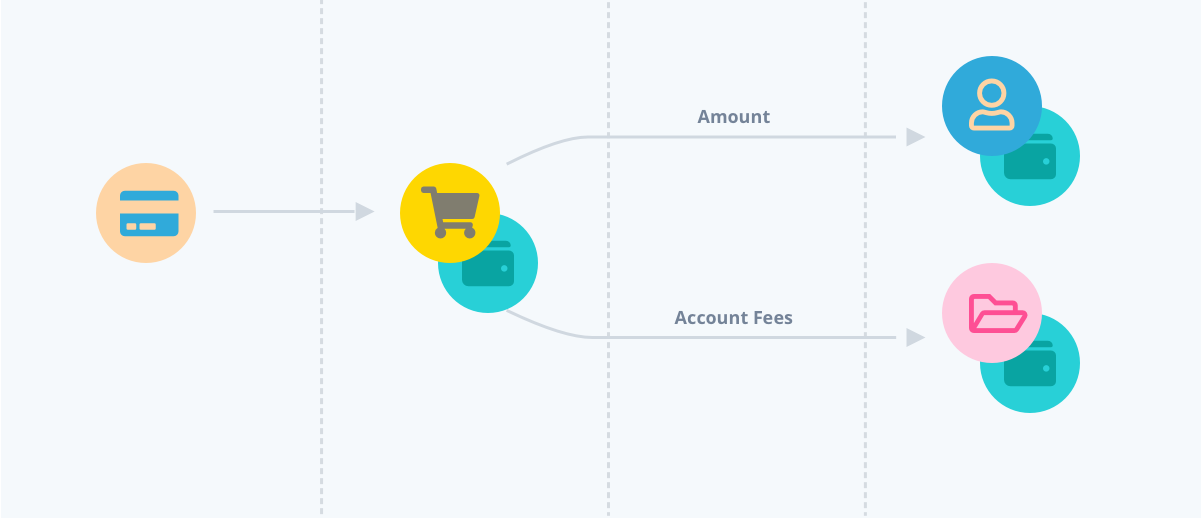
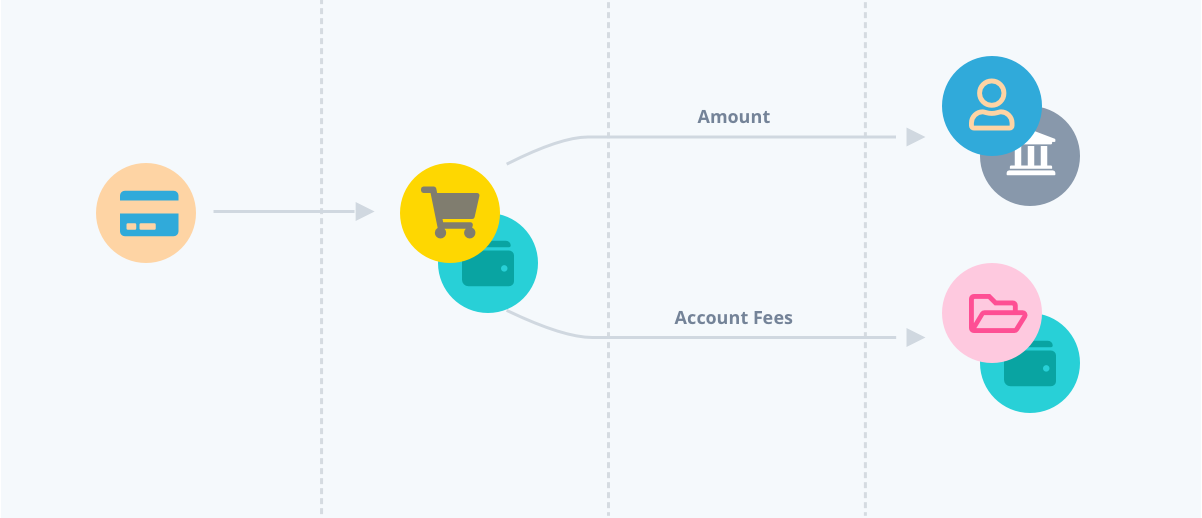 As you can see, the money will be charged from the buyer's card and transferred to the [order's wallet](/getting-started#wallets) once the payment is completed. In this moment, **the funds will be retained** until you [validate the order](/payment-flows/).
Once we get the validation to release the payment, **we will split the funds into two parts**:
* **Amount**: This value will correspond to the total amount to be sent to the seller.
* **Account Fees**: This value will correspond to the total amount transferred to your account's wallet corresponding to this order. Use `fee_amount = 0` to disable the fees on any specific order and override your [default fees](/getting-started#fees).
**Note about fees:** Remember, **fees are not mandatory on every order** and you can perform the default split without any commissions applied. In this case, the total payin amount will be transferred as a payout amount.
This condition is valid for every movement listed on the [wallet payments](/payment-flows#walletpayments).
### Multiple Split
To use multiple split payments, our system provides a set of [wallet payments](/payment-flows#walletpayments) flows that you will have to combine to accomplish multiple splits.
Check the [use cases](/payment-flows#usecases) section to get more information about how multiple splits work.
## Wallet Payments
Using our standard order life-cycle and our available payin and payout types we offer a variety of money flows to cover almost every need.
This kind of complex movement is **only available through our API and it requires you to follow our guidelines** to complete the desired output. Please, read carefully the following descriptions in orders to understand the full cycle.
### Payin to Wallet
This movement will transfer the funds **from the buyer's card or bank account to the seller's wallet**.
Using our API we will require you to create the following objects and relationships:
As you can see, the money will be charged from the buyer's card and transferred to the [order's wallet](/getting-started#wallets) once the payment is completed. In this moment, **the funds will be retained** until you [validate the order](/payment-flows/).
Once we get the validation to release the payment, **we will split the funds into two parts**:
* **Amount**: This value will correspond to the total amount to be sent to the seller.
* **Account Fees**: This value will correspond to the total amount transferred to your account's wallet corresponding to this order. Use `fee_amount = 0` to disable the fees on any specific order and override your [default fees](/getting-started#fees).
**Note about fees:** Remember, **fees are not mandatory on every order** and you can perform the default split without any commissions applied. In this case, the total payin amount will be transferred as a payout amount.
This condition is valid for every movement listed on the [wallet payments](/payment-flows#walletpayments).
### Multiple Split
To use multiple split payments, our system provides a set of [wallet payments](/payment-flows#walletpayments) flows that you will have to combine to accomplish multiple splits.
Check the [use cases](/payment-flows#usecases) section to get more information about how multiple splits work.
## Wallet Payments
Using our standard order life-cycle and our available payin and payout types we offer a variety of money flows to cover almost every need.
This kind of complex movement is **only available through our API and it requires you to follow our guidelines** to complete the desired output. Please, read carefully the following descriptions in orders to understand the full cycle.
### Payin to Wallet
This movement will transfer the funds **from the buyer's card or bank account to the seller's wallet**.
Using our API we will require you to create the following objects and relationships:
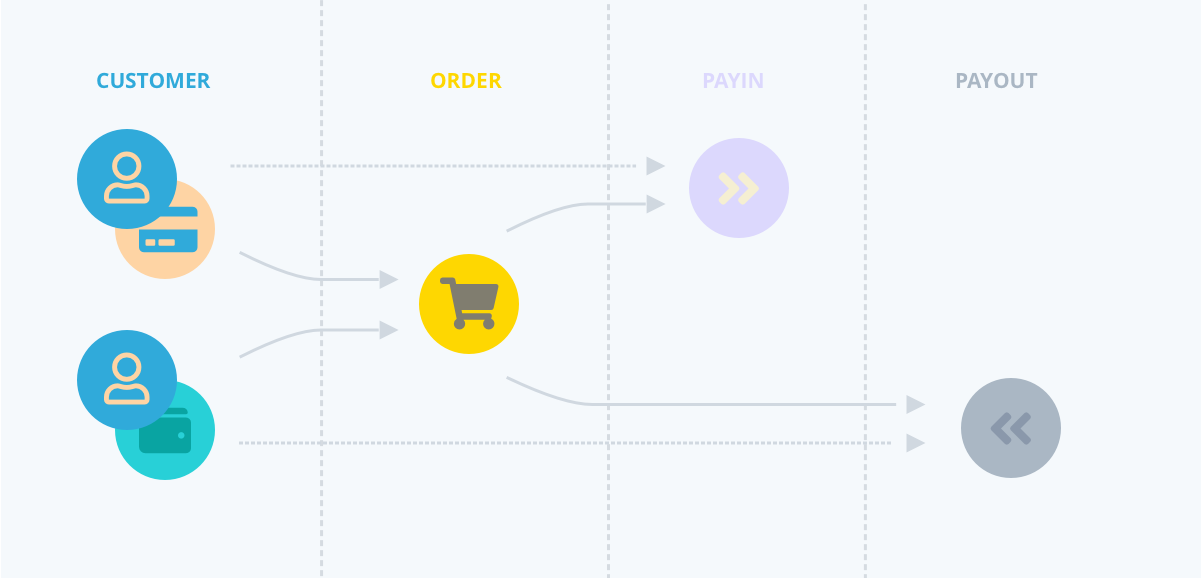 Remember to use, at least, the following values when creating the objects:
* **Customer**: You will use the Customer ID for both users and the seller's Wallet ID
* **Order**: Use the Customer ID related with every user for the `buyer_id` and the `seller_id` respective fields
* **Payin**: Create a payin using the `REDSYS_V2`, `CECABANK` or `BANKWIRE` type
* **Payout**: Create a payout using the type `WALLET` and use the seller's Wallet ID
In this case, the money will flow from the buyer's card, stay held on the order's wallet and, finally, released to the seller's wallet following the next scheme:
Remember to use, at least, the following values when creating the objects:
* **Customer**: You will use the Customer ID for both users and the seller's Wallet ID
* **Order**: Use the Customer ID related with every user for the `buyer_id` and the `seller_id` respective fields
* **Payin**: Create a payin using the `REDSYS_V2`, `CECABANK` or `BANKWIRE` type
* **Payout**: Create a payout using the type `WALLET` and use the seller's Wallet ID
In this case, the money will flow from the buyer's card, stay held on the order's wallet and, finally, released to the seller's wallet following the next scheme:
 ### Payin from Wallet
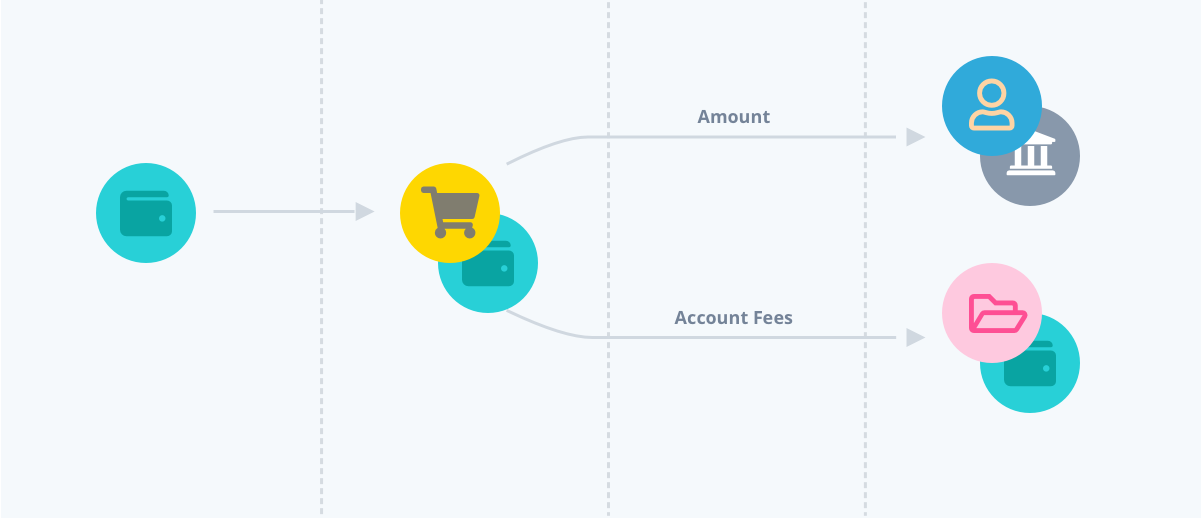
This movement will transfer the funds from the buyer's wallet to the seller's bank account. Note that **the buyer will need a previous order** (Payin to Wallet or Wallet Top-up) to fund his wallet.
### Payin from Wallet
This movement will transfer the funds from the buyer's wallet to the seller's bank account. Note that **the buyer will need a previous order** (Payin to Wallet or Wallet Top-up) to fund his wallet.
 The money will flow as follows:
 ### Wallet Top-up
This movement will transfer the funds from the customer's card or bank account to a wallet, allowing him to top-up his wallet for future usages:
### Wallet Top-up
This movement will transfer the funds from the customer's card or bank account to a wallet, allowing him to top-up his wallet for future usages:
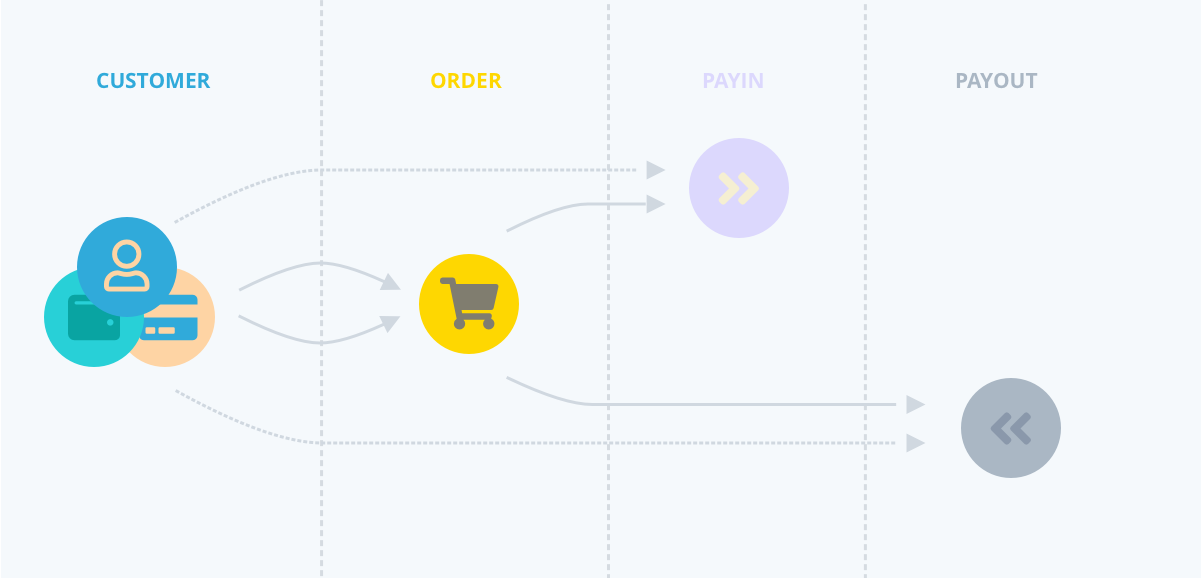 * **Customer**: You will only need the Customer ID and Wallet ID for the user performing the top-up
* **Order**: Use the same Customer ID for the order's `buyer_id` and order's `seller_id` fields
* **Payin**: Create a payin using the `REDSYS_V2`, `CECABANK` or `BANKWIRE` type
* **Payout**: Create a payout using the type `WALLET` and the customer's Wallet ID
* **Customer**: You will only need the Customer ID and Wallet ID for the user performing the top-up
* **Order**: Use the same Customer ID for the order's `buyer_id` and order's `seller_id` fields
* **Payin**: Create a payin using the `REDSYS_V2`, `CECABANK` or `BANKWIRE` type
* **Payout**: Create a payout using the type `WALLET` and the customer's Wallet ID